How to Reset Windows 7 Password Without Any third Party Software

Forgot the administrator password? There are many ways to access a Windows installation if you forgot the administrator password. Today I’ll show you another procedure to reset the Windows password by replacing the Sticky Keys application. This program allows you to use the function keys SHIFT, CTRL, ALT, or the

You can’t use the Windows XP boot CD for this purpose because its Recovery Console will ask for a password for the offline installation. However, you can use a Vista or Windows 7 DVD to reset a forgotten Windows administrator password on Windows XP.

To reset a forgotten administrator password, follow these steps:

  1. Boot from Windows PE or Windows RE and access the command prompt.
  2. Find the drive letter of the partition where Windows is installed. In Vista and Windows XP, it is usually C:, in Windows 7, it is D: in most cases because the first partition contains Startup Repair. To find the drive letter, type C: (or D:, respectively) and search for the Windows folder. Note that Windows PE (RE) usually resides on X:.
  3. Type the following command (replace “c:” with the correct drive letter if Windows is not located on C:):
    copy c:\windows\system32\sethc.exe c:\
    This creates a copy of sethc.exe to restore later.
  4. Type this command to replace sethc.exe with cmd.exe:
    copy /y c:\windows\system32\cmd.exe c:\windows\system32\sethc.exeReboot your computer and start the Windows installation where you forgot the administrator password.
  5. After you see the logon screen, press the SHIFT key five times.
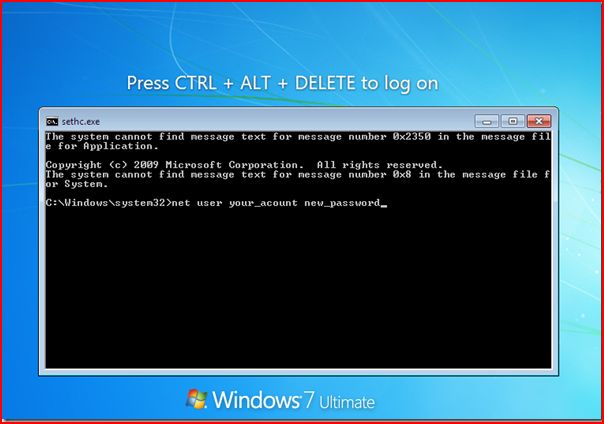
  6. You should see a command prompt where you can enter the following command to reset the Windows password (see screenshot above):
    net user your_user_name new_password
    If you don’t know your user name, just type net user to list the available user names.
  7. You can now log on with the new password.
I recommend that you replace sethc.exe with the copy you stored in the root folder of your system drive in step 3. For this, you have to boot up again with Windows PE or RE because you can’t replace system files while the Windows installation is online. Then you have to enter this command:
copy /y c:\sethc.exe c:\windows\system32\sethc.exe


Restore Windows 7 in 3 Minutes

http://youtu.be/VgezIWOxQMY

If you liked Microsoft’s SteadyState and wish they hadn’t gotten rid of it, Steadier State may answer that wish
If you’ve never heard of SteadyState but think it’d be cool to have the power of a virtual machine’s snapshots implemented on a physical machine running Windows 7 or R2, you may like Steadier State

The Problem
You’re in charge of a bunch of PCs used by random people who are clueless/don’t care
* Classroom labs
* Libraries
* Kiosk machines
* Multiple-user workstations
It’s your job to quickly and easily un-do everything they’ve done to get ready for the next class/patron/user etc… undo in minutes

The Answer
Well, there are plenty of ’em, but they tend to be either slow or expensive
Microsoft used to give away a nice answer called “SteadyState,” but they don’t any more, and never supported Windows 7
Fortunately, there’s a “SteadyState” hidden inside Windows 7 (kind of), and Steadier State makes it possible for Free !!!

Cleanup GB’s of data from your pc/server using MSIZAP !!!

MSIZAP.exe — The only way to clean up \windows\installer

 <– Click on Image to download the File !!!!

Why would anybody ever want to clean out this hidden directory?  Simple, it gets full of junk that you don’t need or want any more.

Anytime an MS update fails to install or gets interrupted, regardless of the product, pieces get left in \windows\installer so that you loose disc space.   This appears to be by design as MS has now removed the download for MsiZap.

If you ever wish to see how much space you can reclaim from all those uncessary installation files leftover to rot in your windows folder, download MsiZap.exe.  I have chosen to link it right here for all to download as needed.  This tool is a must and why on earth MS chose to remove it I will never know.

So now that you have this important file here is how to use it.

Press Start=>run and type cmd.  If you are using the new crappy windows, don’t use this program cuz you know your version of windows is just too cool to need anything like this.

Navigate on the command prompt to where the file is located.  I place the file in \%systemroot%\msizap.exe so that it was all ready to in my path.

Now that you have the location down just type:

msizap.exe !G

Thanks to Ahmed for the heads up !!

Export All Mailboxes from Exchange2007 without the Fuss…

OK, so you have managed to get yourself through the nice issue of being able to export email from exchange2007 via Power-shell http://technet.microsoft.com/en-us/library/bb266964(v=exchg.80).aspx , Where you needed a whole list of things (32 bit machine,Powershell,.net framework,Exchange Management Tools (2007),Outlook,IIS components enabled etc…

but you still have the problem of needing to export ALL mailboxes at once (seperating into individual PSTS) then you simply need this piece of code to do it… Just copy and paste and let the exporting begin…

get-mailbox | foreach {$name=$_.alias
Add-MailboxPermission -Identity $name -User administrator -AccessRights FullAccess
export-Mailbox -identity $name -PSTFolderPath d:\Pst1\$name.pst -confirm:$false
}

Change bold parameters to whatever you specifics are..

Useful Websites and Web Apps

The Most Useful Websites and Web Apps

The sites mentioned here, well most of them, solve at least one problem really well and they all have simple web addresses (URLs) that you can easily learn by heart thus saving you a trip to Google.

01. screenr.com – record movies of your desktop and send them straight to YouTube.
02. ctrlq.org/screenshots – for capturing screenshots of web pages on mobile and desktops.
03. goo.gl – shorten long URLs and convert URLs into QR codes.
04. unfurlr.come – find the original URL that’s hiding behind a short URL.
05. qClock – find the local time of a city using a Google Map.
06. copypastecharacter.com – copy special characters that aren’t on your keyboard.
07. postpost.com – a better search engine for twitter.
08. lovelycharts.com – create flowcharts, network diagrams, sitemaps, etc.
09. iconfinder.com – the best place to find icons of all sizes.
10. office.com – download templates, clipart and images for your Office documents.
11. followupthen.com – the easiest way to setup email reminders.
12. jotti.org – scan any suspicious file or email attachment for viruses.
13. wolframalpha.com – gets answers directly without searching   – see more wolfram tips.
14. printwhatyoulike.com – print web pages without the clutter.
15. joliprint.com – reformats news articles and blog content as a newspaper.
16. ctrql.org/rss – a search engine for RSS feeds.
17. e.ggtimer.com – a simple online timer for your daily needs.
18. coralcdn.org – if a site is down due to heavy traffic, try accessing it through coral CDN.
19. random.org – pick random numbers, flip coins, and more.
20. pdfescape.com – lets you can quickly edit PDFs in the browser itself.
21. viewer.zoho.com – Preview PDFs and Presentations directly in the browser.
22. tubemogul.com – simultaneously upload videos to YouTube and other video sites.
23. dabbleboard.com – your virtual whiteboard.
24. scr.im – share you email address online without worrying about spam.
25. spypig.com – now get read receipts for your email.
26. sizeasy.com – visualize and compare the size of any product.
27. myfonts.com/WhatTheFont – quickly determine the font name from an image.
28. google.com/webfonts – a good collection of open source fonts.
29. regex.info – find data hidden in your photographs – see more EXIF tools.
30. livestream.com – broadcast events live over the web, including your desktop screen.
31. iwantmyname.com – helps you search domains across all TLDs.
32. homestyler.com – design from scratch or re-model your home in 3d.
33. join.me – share you screen with anyone over the web.
34. onlineocr.net – recognize text from scanned PDFs – see other OCR tools.
35. flightstats.com – Track flight status at airports worldwide.
36. wetransfer.com – for sharing really big files online.
37. hundredzeros.com – best-sellers that are currently free. More ways to download free Kindle books.
38. polishmywriting.com – check your writing for spelling or grammatical errors.
39. marker.to – easily highlight the important parts of a web page for sharing.
40. typewith.me – work on the same document with multiple people.
41. whichdateworks.com – planning an event? find a date that works for all.
42. everytimezone.com – a less confusing view of the world time zones.
43. gtmetrix.com – the perfect tool for measuring your site performance online.
44. noteflight.com – print music sheets, write your own music online (review).
45. imo.im – chat with your buddies on Skype, Facebook, Google Talk, etc. from one place.
46. translate.google.com – translate web pages, PDFs and Office documents.
47. kleki.com – create paintings and sketches with a wide variety of brushes.
48. similarsites.com – discover new sites that are similar to what you like already.
49. wordle.net – quick summarize long pieces of text with tag clouds.
50. bubbl.us – create mind-maps, brainstorm ideas in the browser.
51. kuler.adobe.com – get color ideas, also extract colors from photographs.

52. liveshare.com – share your photos in an album instantly.
53. lmgtfy.com – when your friends are too lazy to use Google on their own.
54. midomi.com – when you need to find the name of a song.
55. bing.com/images – automatically find perfectly-sized wallpapers for mobiles.
56. faxzero.com – send an online fax for free – see more fax services.
57. feedmyinbox.com – get RSS feeds as an email newsletter.
58. ge.tt – quickly send a file to someone, they can even preview it before downloading.
59. pipebytes.com – transfer files of any size without uploading to a third-party server.
60. tinychat.com – setup a private chat room in micro-seconds.
61. privnote.com – create text notes that will self-destruct after being read.
62. boxoh.com – track the status of any shipment on Google Maps – alternative.
63. chipin.com – when you need to raise funds online for an event or a cause.
64. downforeveryoneorjustme.com – find if your favorite website is offline or not?
65. ewhois.com – find the other websites of a person with reverse Analytics lookup.
66. whoishostingthis.com – find the web host of any website.
67. google.com/history – found something on Google but can’t remember it now?
68. aviary.com/myna – an online audio editor that lets record, and remix audio clips online.
69. disposablewebpage.com – create a temporary web page that self-destruct.
70. urbandictionary.com – find definitions of slangs and informal words.
71. seatguru.com – consult this site before choosing a seat for your next flight.
72. sxc.hu – download stock images absolutely free.
73. zoom.it – view very high-resolution images in your browser without scrolling.
74. scribblemaps.com – create custom Google Maps easily.
75. alertful.com – quickly setup email reminders for important events.
76. picmonkey.com – Picnik is offline but PicMonkey is an even better image editor.
77. formspring.me – you can ask or answer personal questions here.
78. sumopaint.com – an excellent layer-based online image editor.
79. snopes.com – find if that email offer you received is real or just another scam.
80. typingweb.com – master touch-typing with these practice sessions.
81. mailvu.com – send video emails to anyone using your web cam.
82. timerime.com – create timelines with audio, video and images.
83. stupeflix.com – make a movie out of your images, audio and video clips.
84. safeweb.norton.com – check the trust level of any website.
85. teuxdeux.com – a beautiful to-do app that looks like your paper dairy.
86. deadurl.com – you’ll need this when your bookmarked web pages are deleted.
87. minutes.io – quickly capture effective notes during meetings.
88. youtube.com/leanback – Watch YouTube channels in TV mode.
89. youtube.com/disco – quickly create a video playlist of your favorite artist.
90. talltweets.com – Send tweets longer than 140 characters.
91. pancake.io – create a free and simple website using your Dropbox account.
92. builtwith.com – find the technology stack of any website.
93. woorank.com – research a website from the SEO perspective.
94. mixlr.com – broadcast live audio over the web.
95. radbox.me – bookmark online videos and watch them later (review).
96. tagmydoc.com – add QR codes to your documents and presentations (review).
97. notes.io – the easiest way to write short text notes in the browser.
98. ctrlq.org/html-mail – send rich-text mails to anyone, anonymously.
99. fiverr.com – hire people to do little things for $5.
100. otixo.com – easily manage your online files on Dropbox, Google Docs, etc.
101. ifttt.com – create a connection between all your online accounts.

Grabbed from http://www.labnol.org/internet/101-useful-websites/18078/?sub=dp

MS EXCEL: How to add data from 2 cells together into another Cell.

Type in the following command, where A1 is the location of First Cell and B1 is value of Second Cell. You place this command into Third Cell which will output the data in A1 and B1 together with a space. (as seen in screenshot). Thanks to Keith Machale for this bit of knowledge.

=CONCATENATE(A1&” “&B1)

SharePoint Designer – 2010 Workflows with InfoPath 2010 forms and Visio Modeling

SharePoint Designer 2010 Workflows with InfoPath 2010 forms and Visio Modeling

InfoPath forms are a great way to capture information from a user. They can be presented to the user as a web form right within a SharePoint site. User can fill out the form and it gets submitted to the form library in your site. The form library then has the capability to route that form for approval using a workflow. SharePoint Designer can be used to create that workflow. Workflows can also be modeled in Visio and then transferred to SharePoint Designer. All of this and more is demonstrated in this video.

How do i find out where the share is actually located on a network ?

To find the actual location of file shares on Windows network and also to view administrative shares, open a command prompt. To open a command prompt, click the Start Menu, choose the Accessories option, then choose Command Prompt. Alternatively, click the Start Menu, choose the Run option, then type ‘cmd’ in the Run window that opens.

Type the command ‘net share’ and press Enter in the command prompt window. The ‘net share’ command shows the name and location of each shared folder on that computer. Share names that end with a dollar sign ($) are administrative shares.

Several administrative shares are created automatically by Windows; these should not be modified.