
Here is a list of excellent Online Resources. Click one now and improve your day.
vixy.net
kuler.adobe.com
wikitravel.org
thinkingwithtype.com
madehow.com
icp.org
howstuffworks.com
dafont.com
dictionary.reference.com
gutenberg.org
nationmaster.com
del.icio.us
touchgraph.com
Deployment Workbench in Microsoft Deployment Toolkit 2010
This demonstration shows how the Microsoft Deployment Toolkit is used to create deployment media to install Windows 7. The process includes migration of user files and settings, automated installation of the Windows 7 operating system, automated installation custom applications and performing additional configurations needed when migrating from Windows XP or Windows Vista to Windows 7.
Backup Exchange 2007 with NTBACKUP
The Right Way to Backup Exchange Server 2007
Option # 1 – use a backup that is an off-line-level backup. Take the database off-line, do the backup and put it back on-line.
Option # 2 – the best type of backup for an Exchange Server is an “exchange-aware” backup. This type of backup will capture all the Exchange data properly and it will flush the Exchange logs, which are very important for your server recovery.
NTBackup is a type of “exchange-aware” backup. It is one of the most popular Exchange backup system for small to medium size businesses and it’s available from Microsoft. In fact, you probably already have it on your Exchange Server and don’t even know it.
One thing to keep in mind is that using an “exchange-aware” backup is not enough to create a proper Exchange copy. You have to make sure to configure these backups in “exchange-aware” fashion, which I will explain in more detail below.
What to Backup on Exchange Server?
Not everything on your Exchange Server needs to be backed up. However, there are a few things that must be backed-up to be able to run a successful recovery:
- Mail databases – as mentioned above, in an “exchange-aware” fashion
- System State files and folders
- Files and folders under Program Files\Microsoft\Exchange Server\ with the exception of the Storage Group Folders in Mailbox directory as they are going to be backed up in an “exchange-aware” fashion also
Now that we know what to backup and which type of backup to choose, let’s go over the steps of a backup procedure.
Performing the NTBackup on Exchange Server 2007
We got the most important Exchange backup basics covered and now we’re ready for the steps on how to configure your NTBackup. I know this is what you have been waiting for, so let’s get started.
- To start, login to your Exchange Server, click on the Start Menu, select Run, type in ntbackup and hit Enter:

- In the Backup Utility window for NTBackup, click on the Backup tab:

- You will see all your hard drives listed in this window; you will also see a System State listed, as well as the Microsoft Exchange Serveroption.Expand the Microsoft Exchange Server all the way down until you are able to see your Storage Groups. In my example below, there are two Storage Groups listed: First Storage Group and Second Storage Group

- Go ahead and check the boxes next to all of your Storage Groups:

- Next, expand your Local Disk where your Exchange Server was installed and then the Program Files Folder:

- Locate the Microsoft folder and expand it. You should now be able to find the “Exchange Server” folder. Go ahead and check the box next to it:

- Now remember, we need to exclude the Storage Group folders from that directory. So expand the Exchange Server folder and then the Mailboxfolder:

- Uncheck the checkboxes next to all of your Storage Group folders. In my example I am unselecting the box next to First Storage Group and Second Storage Group.

- Alright, we’re almost done here. The last thing we need to remember is to check the box next to our System State, so let’s do this now:

- Now it’s time for you to select the backup destination. You can select a network drive, a secondary local disk or a media tape:

- After you have selected your backup destination, click on the Start Backupbutton:

- At this point you have two sets of options:
- Option Set #1 – Choose between appending the backup to the media or replacing the data. I’m going to replace the data.
- Option Set #2 – Start the backup right away, or create a schedule. In my example, I’m going to start it right away.
When you have made your selections, click on the Start Backup button to start the actual backup process:

- Once the backup is completed you will see the screen below. At this time you have successfully preformed an Exchange Server backup – the Right Way!

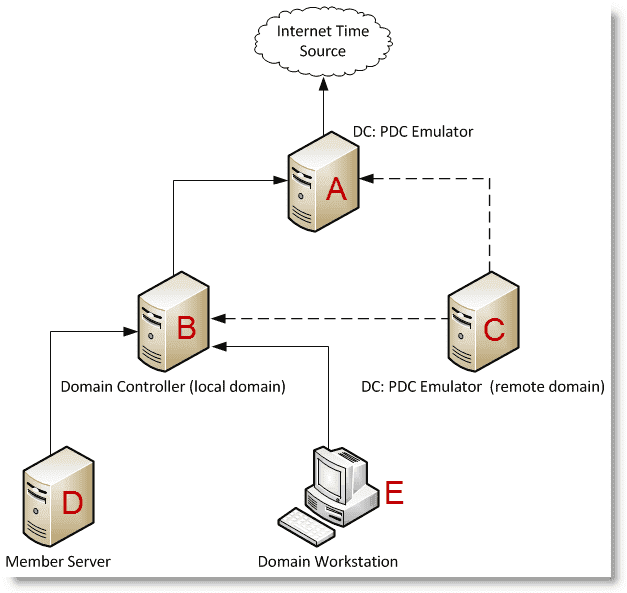
Configuring Windows Time Server for Active Directory
Check out this great blog post by tigermatt on setting up Window Time Sync across your domain…..
http://tigermatt.wordpress.com/2009/08/01/windows-time-for-active-directory/
Use your Fortinet to block all web sites except those you specify using a whitelist
Here we see how to create a web filter profile that blocks all sites except those you explicitly allow. In this example, users will be blocked from all sites except fortinet.com. You can do this by making a URL filter that has an entry that blocks all sites, and entries that allow individual sites. Ensure the entry that blocks all sites is the last entry in the URL filter list.
Apple Devices – Get revved up for Business Scaled roll-out.
TheNextWeb reported recently that following its iPad announcement, Apple quietly released a tool on their App Store that “makes it easy for anyone to mass configure and deploy iPhone, iPad, and iPod touch in a school, business, or institution.” Called Apple Configurator, the company says that the new app makes it easy to “prepare new iOS devices for immediate distribution, supervise devices that need to maintain a standard configuration, and assign devices to users.” You can also, “Quickly update 30 devices at a time to the latest version of iOS, configure settings, and install apps and data for your students, employees, or patrons.”
This is clearly a move to change the perception in IT departments of the iPad and other iOS devices as purely one-off personal gadgets into fully featured enterprise solutions. Apple goes on that Configurator, “can be used by larger organizations and businesses to set up new devices, install enterprise apps, and enroll each device with a Mobile Device Management solution for remote management by an IT administrator. It is perfect for the classroom or student lab where devices need to be quickly refreshed and kept up to date with the correct settings, approved policies, apps and data. Apple Configurator can also be used to personalize devices with data and documents for specific users.”
With so many users choosing Apple products to make their jobs easier to do, this addition should be seen as a clear in step into the enterprise market.The one thing Apple has over all it’s competitors is that people want their Apple device to do what there other devices can do, but it’s not the other way around. Interesting space to be in right now as Apple catch up with enterprise roll-out.
Microsoft Health Scanner – Use it.
Are you fed up scrolling through Event logs and taking on the role of Jessica Fletcher to find the problem with your Windows environment ?
If so you may want some help to get to the root of the issue…so i suggest you check this download:
This is the Microsoft IT Environment Health Scanner and i am very impressed by this little tool.
It will scan your environment and show you potential problems… very worth the download and a little play!
Enjoy. Have a good weekend !!!
Paul.
To Do, What to do ?

In my professional life as the “IT Guy” I have road tested many useful iPhone and Windows Apps which help you remember tasks and prioritize them. Some were good, some were deleted within minutes and some were almost perfect but just lacked that additional piece of coding you need to “get things done”. That piece of coding is hardwired into our brains and its called “Distributed Cognition”. It’s that last bit of planning where you get all the impending tasks out of your head and spread them out in front of you and then BOOM, things are clearer and you see a picture of how your next 2 hours/2 Days/2 Weeks will be spent.
“The great thing about external brainstorming is that in addition to capturing your original ideas, it can help generate many new ones that might not have occurred to you if you didn’t have a mechanism to hold your thoughts and continually reflect them back to you. It’s as if your mind were to say, “Look, I’m only going to give you as many ideas as you feel you can effectively use. If you’re not collecting them in some trusted way, I won’t give you that many. But if you’re actually doing something with the ideas—even if it’s just recording them for later evaluation—then here, have a bunch! And, oh wow! That reminds me of another one, and another,” etc.”
“Getting Things Done” by David Allen
In essence, we all need certain tools to allow us to remember, prioritize and implement daily tasks and larger projects and the use of apps and natural age old methods side by side may well be the best way to accomplish this. I have finally settled on the following along with the age old Pencil and Pad to keep things out of my head but still in close reach.
Here’s 4 Amazing tools that will help you get things done …
1. Wunderlist – Work (Sync across Mobile device and Desktop)
2. Clear – Personal (Mobile only)
3. MindMeister – External Brainstorming (On all platforms, 1 account)
3. ToDo Homepage – Planning 2 hours of work (Desktop only)
Stay posted to Technology Ireland for the complete 4 part series on all 4 apps, starting with Wunderlist this coming weekend….
Happy St. Patrick’s Day….
Paul.
Script to set all PW to never expire in O365
Following on from the previous post, here is the complete script. Copy and paste it into Powershell.
It will ask for Id and PW twice, please input.
$LiveCred = Get-Credential
$Session = New-PSSession -ConfigurationName Microsoft.Exchange -ConnectionUri https://ps.outlook.com/powershell/ -Credential $LiveCred -Authentication Basic -AllowRedirection
Import-PSSession $Session
Connect-Msolservice
Get-MsolUser | Set-MsolUser -PasswordNeverExpires $true
Get-MsolUser | Select UserPrincipalName, PasswordNeverExpires
Turn off password expiration for domain in Office365
For users who are not synchronized through directory synchronization
In Office 365, customers can use the Microsoft Online Services Module for Windows PowerShell (MOSMWP) to configure their user passwords to never expire. The following steps can be provided to customers who want to configure these settings for their users.
Get-ExecutionPolicy
If set to unrestricted continue, if not use the command
Set-ExecutionPolicy (hit enter), then type unrestricted.
$LiveCred = Get-Credential
Put in the specific domain admin id and password.
$Session = New-PSSession -ConfigurationName Microsoft.Exchange -ConnectionUri https://ps.outlook.com/powershell/ -Credential $LiveCred -Authentication Basic -AllowRedirection
This connects up to MS online portal and allows for importing of session with scripts to allow for change.
Import-PSSession $Session
Imports session with scripts (temporarily)
Connect-Msolservice
This will ask again for domain id and PW.
Get-MsolUser | Set-MsolUser -PasswordNeverExpires $true
This puts policy in place for all users.
Get-MsolUser | Select UserPrincipalName, PasswordNeverExpires
This shows if script has worked. All should be set to true after change is made.
Note If you want to change the setting back (and allow for password expiration) for all the users in an organization, use the following cmdlet:
Get-MSOLUser | Set-MsolUser -PasswordNeverExpires $false
For more information about the Microsoft Online Services Module for Windows PowerShell, visit the following Microsoft website:
http://onlinehelp.microsoft.com/en-us/office365-enterprises/hh125001.aspx
 paulgilbride.com