Whats the difference between Application Pools and Web Sites in IIS ?

From a SharePoint point of view, both are created by a SharePoint Admin, through Central Admin or PowerShell.

An IIS site is equal to a SharePoint web application. Each web application must run within a single application pool. However, an application pool can host several web applications.

An application pool represents a w3wp.exe process running on the server (you can see it in Task Manager). It provides a process where the IIS sites (web apps) that use it can execute server side code and respond to user requests.

How to find out what extensions are blocked in SharePoint

1.Browse to the Central Admin site
2.Select the Operations tab
3.Under the Security Configuration section, click the link for Blocked file types
4.Select the Web Application that you would like to modify from the drop down list
5.Each blocked file extension displayed in the list is blocked by SharePoint. To enable the blocked file extension, simply remove it from the list.

Configure custom permissions (SharePoint Server 2010)

Customize an existing permission level

If the custom permission level that you want is nearly identical to an existing default permission level and you do not need to use the default permission level, you can customize the default permission level.

To customize an existing permission level

  1. Verify that you have one of the following administrative credentials:
    • You are a member of the Administrators group for the site collection.
    • You are a member of the Owners group for the site.
    • You have the Manage Permissions permission.
  2. On the Site Settings page, under Users and Permissions, click Site permissions.
  3. In the Manage section of the ribbon, click Permission Levels.
  4. In the list of permission levels, click the name of the permission level you want to customize.
  5. In the list of permissions, select or clear the check boxes to add permissions to or remove permissions from the permission level.
  6. Click Submit.

Copy an existing permission level

If the custom permission level that you want is similar to an existing default permission level, and you need to use both the default permission level and your custom permission level, you can copy the default permission level, and then modify the copy and save it as a new permission level.

To copy an existing permission level

  1. Verify that you have one of the following administrative credentials:
    • You are a member of the Administrators group for the site collection.
    • You are a member of the Owners group for the site.
    • You have the Manage Permissions permission.
  2. On the Site Settings page, under Users and Permissions, click Site permissions.
  3. In the Manage section of the ribbon, click Permission Levels.
  4. In the list of permission levels, click the name of the permission level you want to copy.
  5. At the bottom of the page, click Copy Permission Level.
  6. On the Copy Permission Level page, in the Name field, type a name for the new permission level.
  7. In the Description field, type a description for the new permission level.
  8. In the list of permissions, select or clear the check boxes to add permissions to or remove permissions from the permission level.
  9. Click Create.


Create a permission level

If there is no permission level similar to the one you need, you can create one.

To create a permission level

  1. Verify that you have one of the following administrative credentials:
    • You are a member of the Administrators group for the site collection.
    • You are a member of the Owners group for the site.
    • You have the Manage Permissions permission.
  2. On the Site Settings page, under Users and Permissions, click Site permissions.
  3. In the Manage section of the ribbon, click Permission Levels.
  4. On the toolbar, click Add a Permission Level.
  5. On the Add a Permission Level page, in the Name field, type a name for the new permission level.
  6. In the Description field, type a description of the new permission level.
  7. In the list of permissions, select the check boxes to add permissions to the permission level.
  8. Click Create.

Create and manage a Document Workspace site in SharePoint

 
A Document Workspace site helps you to coordinate the development of one or more related documents with other people. The site provides tools to share and update files and to keep people informed about the status of those files.
 
Overview
By using a Document Workspace site, you and your colleagues can coordinate the development of one or more related documents. The site provides tools to share and update files and to keep people informed about the status of those files. You and your colleagues can work together on a Document Workspace site to develop a document in the following ways:
  • Work directly on the copy located on the Document Workspace site
  • Work on a local copy and update the copy regularly on the Document Workspace site

You and other workspace members can also use a Document Workspace site to publish announcements, assign tasks, share relevant links, and receive alerts about changes to site content. You can create a Document Workspace site for a short-term project and delete the site when the project ends or keep the site permanently.

 Note   By default, site owners have the required permission level to create Document Workspace sites within an existing site. If you are a site owner and want to enable other site members to create Document Workspace sites, you can grant permission to create sites to the Microsoft Windows SharePoint Services group (SharePoint group: A group of users that can be created on a SharePoint site to manage permissions to the site and to provide an e-mail distribution list for site users. A group can be used by many sites in one site collection.) that the team members belong to.

Create a Document Workspace site from a document in a library

You can create a new Document Workspace site from a document that is already in a library on the site. Depending on the program, you may also be able to create a new Document Workspace site from within a program that is compatible with Microsoft Windows SharePoint Services, such as Microsoft Office Word 2007. For more information, see Help in that program.

  1. Open the document library where the document is stored.
  2. Point to the name of the document, click the arrow that appears, point to Send To, and then click Create Document Workspace.

 Note   If the Create Document Workspace option is not available, you do not have permission to create a workspace on that site. Ask the site owner to give this permission to you or to create the workspace site for you.

  1. Click OK.

Create an empty Document Workspace siteIf you want to create a Document Workspace site but do not want to base it on an existing document in a library, you can create an empty Document Workspace site and add one or more documents later.

  1. Open the site where you want to create a Document Workspace site.

Click View All Site Content, and then click Create on the All Site Content page.

 Tip   In most cases, you can use the Site Actions menu Menu image instead to complete this step.

 Note   You may need to ask the site owner to give you permission to create a Document Workspace site.

  1. In the Web Pages list, click Sites and Workspaces.
  2. Enter the information about the Document Workspace site that you want to create, such as the title and the last part of the Web site address.
  3. In the Template Selection section, click the Collaboration tab, and then click Document Workspace.
  4. In the Permissionssection, do one of the following:
    • If you want all members of the parent site to be members of this workspace, click Use same permissions as parent site.
    • If you want only a specific set of people to be members of this workspace, click Use unique permissions.
  5. If you want the top link bar from the parent site to appear on pages on this new site, verify that Use the top link bar from the parent site is selected in the Navigation Inheritance section.
  6. Click Create.

Add a document

Regardless of whether you create a Document Workspace site from an existing document or you create an empty Document Workspace site, you can add new documents to the Document Workspace site at any time.

  1. On the home page of the Document Workspace site, click Shared Documents.
  2. Do one of the following:
    • To create and add a new document, click New.
    • To add an existing document, click Upload, and then click Browse to find the file that you want to add. Select the file, and then click Open. If a document with the same file name already exists in the library and you do not want to overwrite the existing document, clear the Overwrite existing files check box.
  3. Click OK.

 Tip   You can also add a linked copy of a document from another library to the Shared Documents library of the Document Workspace site by creating a Send To destination. When the original document or the linked copy is updated, you can update the copy in the other location easily. Find links to more information about adding linked copies of documents to other libraries in the See Also section.

Add a user

To add users to a Document Workspace site, you must have permission to add members to the parent site or the Document Workspace site. If you cannot add users to the Document Workspace site, contact the owner of the parent site.

  1. On the home page of the Document Workspace site, in the Members list, click the name of the group to which you want to add a user.
  2. On the New menu Menu image, click Add Users.
  3. In the Add Users section, type the name, group name, or e-mail address of the user or group that you want to add. If you add more than one user, separate each name with a semi-colon (;). You can also click Browse Button image to search for and select the person from the directory.
  4. In the Give Permission section, click the group to which you want to add the user.
  5. Click OK.

Add a taskYou can use the Tasks list on your Document Workspace site to assign work items to yourself or other members of the workspace. Members can then update and share the status of their assigned tasks easily. By using the Tasks list, you can set priority and due dates for tasks, as well as task status and percent complete. As the owner of the Document Workspace site, you can also add custom fields to the Tasks list, just as you do with any other list on a SharePoint site. Find links to more information about customizing lists in the See Also section.

  • On the home page of the Document Workspace site, under Tasks, click Add new task.
  • Type a name for the task in the Title box.
  • In the Priority list, click the priority of the task.
  • In the Status list, click the status of the task.
  • To assign the task to someone, do one of the following in the Assigned Tosection:
    • Type the e-mail address of the person to whom you want to assign the task.
    • Type the full name of the person to whom you want to assign the task, and then click Check Names Button image. If the person is found in the directory, the name resolves to that person’s e-mail address. If the person is not found in the directory, the message No exact match was found appears.
    • Click Browse Button image to search for and select the person from the directory. When you finish, click OK.
  • If necessary, type a brief description of the task in the Description box.
  • In the Start Date box, enter the date when the task begins.
  • In the Due Date box, enter the date when the task must be completed.
  • Click OK.

Add an announcementUse the Announcements list to post important messages about the project for team members, such as deadlines and changes in deliverables, introductions to new team members, and other information.

  • On the home page of the Document Workspace site, click Add new announcement.
  • In the Title box, type a title for your announcement.
  • In the Body box, type the full text of your announcement.
  • If you want the announcement to automatically expire after a certain date, type the date in the Expires box.
  • Click OK.

Add a link to the Links list

You can use the Links list to share links that are useful to team members. The list can provide quick and easy access to related information and resources such as other Web sites.

  • On the home page of the Document Workspace site, click Add new link.
  • In the URL section, type the address of the Web page or other type of resource to which you want to link, and then type a description for the link.

 Note   The text that you type in the Type the description box appears as the name of the link in the Links list. You can include notes about the link in the Notes section, but this information does not appear in the default view of the Links list that appears on the home page of the Document Workspace site.

  • Click OK.

Create an e-mail alert for a task

After you create tasks and assign them to workspace members, you can choose to receive e-mail alerts notifying you of any changes to items in the Tasks list. Members can also create their own alerts to receive e-mail notification of changes to other items of interest to them.

 Note   You can create e-mail alerts for tasks only if your server administrator has enabled the server running Windows SharePoint Services to send e-mail.

  • On the home page of the Document Workspace site, click Tasks.

If the Tasks list does not appear on the home page, click View All Site Content, and then click Tasks.

  • On the Actions Menu image menu, click Alert Me.
  • In the Alert Title section, type a name for your alert.
  • In the Send Alerts To section, your name is included by default in the Users box. You can send alerts to other members by adding their names to the Users box, separated by a semi-colon (;).
  • In the Change Type section, select the type of changes to which you want to be alerted.
  • In the Send Alerts for These Changes section, select a filter to receive changes based on certain criteria.

 Tip   You can also choose to receive alerts for items shown in a particular view of the Tasks list.

  • In the When to Send Alerts section, select how frequently you want to receive alerts.
  • Click OK.

Publish a document back to a library from a Document Workspace siteIf your Document Workspace site is based on an existing document that was stored in a library, you can update the original copy with changes that were made to the copy of the document on the Document Workspace site.

  1. On the Document Workspace site, open the library that contains the document.
  2. Point to the name of the document, click the arrow that appears, point to Send To, and then click Publish to Source Location.

Delete a Document Workspace site

After the documentation project is finished, and final versions of the documents are moved to other locations, you can choose to delete the Document Workspace site. To delete the site, you must have the Full Control permission level. By default, site owners have this permission level.

 Important   Be sure to publish all documents to another location before you delete a Document Workspace site. When you delete a Document Workspace site, all documents, libraries, lists and list data, site settings, permission levels, and security information contained on the Document Workspace site are destroyed permanently.

On the home page for the site, click the Site Actions menu Site Actions menu, and then click Site Settings.

 Note   On a site for which the Site Actions menu is customized, point to Site Settings, and then click the settings that you want to view.

  1. In the Site Administration column, click Delete this site.
  2. Click Delete, and then click OK to confirm that you want to delete the site.

Manage Site Access Request for Multiple accounts

This Article will explain how we can add multiple users for Access request notification using Site administration option.

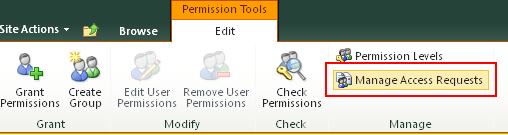
The little article and trick will help using normal email l sending configuration and how we can use on “Access request notification”, first we need to go to “Site Action> Site Settings>Permission” there we have the option “Manage Access Requests”.


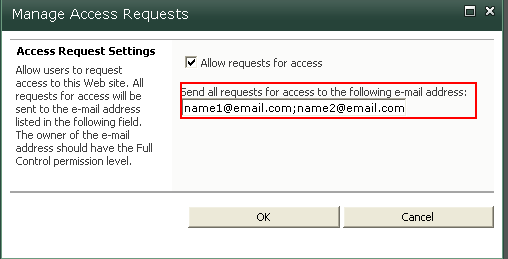
When we access “Manage Access Requests”, we can define one or multiple users to be warn about the request, a lot of people think this is limit to “one user” that is not true, only need to add a semi-colon (;) to separate the emails account.


With this change you can define multiple users for the notification access request email, very easy and simple…

bpostaci's avatarBugra Postaci's Blog

First Method: Using Central Administration

1) Open your Central Administration web page and Click “Operations”
2) Click Diagnostic Logging link

3) For enabling verbose mode for all categories:
Select and set “Select a Category” combobox value to “All
Select and set “Least critical event to report to the event log” combobox value to “Warning
Select and set “Least critical event to report to the trace log” combobox value to “Verbose

4) Click OK.Its done.
Important!:Please don’t forget change mode to default after collecting needed verbose mode logging. Because in verbose mode log files grows rapidly and if you are not enough storage your sharepoint server would be crashed

Important!:Before enabling verbose mode ensure you have enough hdd space on ALL your servers. Because this is a farm configuration and all servers has been affected by this change.

For restoring default values.

View original post 252 more words

Paul O’Mahony: Five ways to monetise your blog via @independent_ie

Paul O’Mahony: Five ways to monetise your blog via @independent_ie.


Using the “gadget” function on blogger, here are five simple tips to monetise your blog.

– Place Amazon banners with your affiliate link to relevant books on your niche.

– Place banners for upcoming online or offline talks or events on your niche using your affiliate link.

– Use Google adverts on your blog to earn money from every click on those ads.

– Sign up for clickbank or clicksure to promote downloadable products relevant to your niche with banners.

– Use an opt-in box (email collection box) in your blog offering free gifts in return for an email address.

What are Timer Jobs in SharePoint ?


Many different types of applications require some variation of a scheduled process to run. These processes are used for complex calculations, notifications, and data validation checks, among many other tasks. Windows SharePoint Services is no exception. To return relevant and timely results to users’ search queries, the content within a server farm must be indexed ahead of time. This indexing is performed at scheduled intervals. Search is only one example; another example might be sending nightly or weekly e-mail messages to users who want to be notified when changes occur in a SharePoint list. These scheduled tasks are handled by the SharePoint Timer service, a Windows service that is set up as part of the installation process.

The SharePoint Timer service is similar to tasks that you can create in any version of Windows by using the Task Scheduler application. The major benefits of using the SharePoint Timer service compared with Windows Task Scheduler jobs is that the timer service knows the topology of the server farm, and you can load balance the jobs across all the servers in the farm or tie them to specific servers that run particular services.

Although Windows SharePoint Services has included a timer service for some time, it has not been easy (or possible) for developers to take advantage of this service to create and register their own scheduled processes. Windows SharePoint Services 3.0 changed this and made the scheduled service much easier to use. First, farm administrators can now see all the registered and timer jobs in a server farm in Central Administration. To do this, on the Operations page, under the Global Configuration section, select Timer Jobs Definitions. In addition to the registered jobs, the Timer Job Status page contains a list of all the jobs and the status and outcome of the last execution of each job.

You define timer jobs by using a single class that inherits from the Microsoft.SharePoint.Administration.SPJobDefinition class. You must deploy the assembly that contains this class to the global assembly cache (GAC). Then you must deploy, or install, the timer job into the server farm. This article describes how to create a custom timer job and deploy it into a server farm that is running Windows SharePoint Services 3.0. In addition, just like many other applications, timer jobs may require some external configuration data in order to function correctly. You have several different options for where to store this configuration data.

The example timer job in this article is not very complex. The purpose of the custom timer job is to act as a replacement for the Windows SharePoint Services warmup scripts. Because Windows SharePoint Services is an ASP.NET 2.0 application, pages are compiled from the generic MSIL to native code upon first use. This is known as just-in-time (JIT) compilation. If not performed beforehand, it can cause pages to load slower the first time they are requested. For the Windows SharePoint Services 3.0 beta release, Microsoft provided a script, known as the warmup script, that issues HTTP requests to a list of Windows SharePoint Services URLs to force the JIT compilation. Although it is not widely used in a production environment, the warmup script removes the initial load time of a requested page. This is useful for Windows SharePoint Services demonstrations and development. The timer job that is demonstrated in this article serves to replace the warmup script.

Customizing Access Denied Page in MOSS 2007

Sometimes you get a requirement to customize the default ‘Access denied page’ in MOSS 2007. For beginners, don’t confuse this page with IIS 401 ‘Access denied’ page. They are completely different. Request for customizing access denied page generally means, having the same look and feel of the rest of the site. In my experience this is easier said then done.

After researching I found the following options available on the net

1.    If you want to just change the content of the access denied page then modify the resources text in resources pages (http://blogs.msdn.com/sridhara/archive/2007/04/14/customizing-placeholder-values-in-moss-2007.aspx) . This won’t help our scenario. We want to customize the entire page and it should have same look and feel of the rest of the site.

2.    Change the ‘Access denied page’ completely as mentioned here (http://blogs.tamtam.nl/mart/CustomizingTheLayoutsFiles.aspx). But this is not MS recommended scenario as future updates may replace the access denied page. Microsoft published a workaround for this (http://support.microsoft.com/kb/944105) but again doesn’t look very clean.  

3.    Create a HTTP module as mentioned here  (http://blogs.msdn.com/bgeoffro/archive/2007/11/12/branding-a-moss-corporate-intranet-portal-part-3-layouts-pages.aspx) . This one is too tedious.

Unfortunately, Microsoft doesn’t recommend changing this page because these are system pages and any future updates may overwrite these changes. So I choose the workaround as suggested by Microsoft and created a backup of the ‘Layouts’ folder. Then

  1. Backed up ‘accessdenied.aspx’ page as ‘accessdenied_original.aspx’
  2. Created a new ‘accessdenied.aspx’ page
  3. We cannot inherit this page from existing default.master page because master page is not in the file system and the security context for master page is different from access denied page. So there is no other option than copying the entire master page code into the new ‘accessdenied.aspx’ page.
  4. We need to then physically delete master page controls in the access denied page. Go through the code and delete all the asp:ContentPlaceHolder code.
  5. In Visual Studio switch between design view and code view and remove all the control errors
  6. Add the required content in the accessdenied.aspx page
  7. Save the page and now browse to the new accessdenied.aspx page directly (http://<yoursitename>/_Layouts/AccessDenied.aspx)
  8. Everything looks good? – Good! You think you are done with access denied page. No not yet.

For some reason re-login feature (“Sign in as Different user”) is implemented via access denied page. Click on your name in the top right corner and select ‘Sign in as different user’. You will get access denied page. Strange but it is true!! No idea why it is done this way (other than someone took a shortcut approach).

So now, you need to implement the ‘Sign in as different user’ login in your new accessdenied.aspx page. This can be done in two ways

  • You can choose to implement the entire logic including the javascript and other controls in the new accessdenied.aspx page
  • Or redirect users to ‘accessdenied_original.aspx’ based on the value in querystring for ‘loginasanotheruser’.

Quick A to Z of SharePoint Logs

SharePoint generates multiple log types. Logs in SharePoint require three basic steps like all other logs: Logging, Processing and Reporting. The logging can take place to file locations on front-end servers or to the associated content databases for each Site Collections (including SSP). Processing happens via Timer Jobs on the front end servers and the SSP server (if different) using the Timer Service at various configurable intervals. Reports are available via the web browser at Site, Site Collection, Web Application or Farm Level. MOM packs are available both for WSS 3.0 and MOSS 2007 and help administrators in maintaining the entire farm from a central location.

All file based logs can be read by text editors and can be parsed by using popular log parsing tools (Log Parser 2.2 from Microsoft or Funnel Web). It will also be a good idea to read the IIS Logs which are generally saved at (System Drive):\WINDOWS\system32\LogFiles

 a)      Diagnostics Logs

  • Event Throttling Logs – These end up going to the Windows Event Log and can be viewed in the Event Viewer. They show Errors and Warnings.
  • Trace Logs – These show detailed line by line tracing information emitted during a web request or service execution. They end up being stored at a known location on the front-end server. Default Location: (System Drive):\Program Files\Common Files\Microsoft Shared\Web Server Extensions\12\LOGS\ 

b)      Audit Logs – They end up in the associated Content Database tables and can be viewed at Site Collection Level as well as Site Level using the web browser. WSS 3.0 and MOSS 2007 use different pages to show Audit Log Reports.

 c)       Usage Logs – They get stored locally on the front-end servers and get processed both locally and at farm level via SSP (this is based on the setup as I understand the results from the local processing are merged by SSP) and can be viewed at both the Site Level and Site Collection Level. Default Location: (System Drive):\Program Files\Common Files\Microsoft Shared\Web Server Extensions\12\Logs

 d)      Search\Query Logs – These are saved in the associated SSP database but can be viewed at SSP level via the Web Browser and in MOSS at Site Collection Level by going to the settings page.

e)      Information Management Logs – Stored in the associated Content Database and can be viewed at the Site Collection Level.

 f)       Content and Structure Logs – This option is only available after one enables the publication feature. This store is saved in the Content Database associated with the Site Collection and can be viewed at Site Collection level by going to the settings page.